|
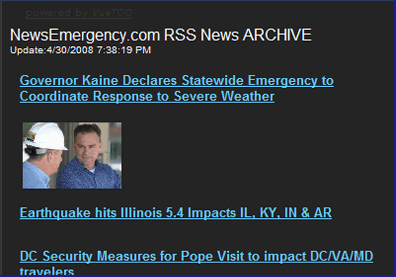
" RSS Feed - A link to any sort of news website (local, national or government) that scrolls the headlines and short description constantly. These are found by looking for the orange RSS Icon (see right), or looking for "News Feeds" on your local news website."
- from "Adding Content on VueTOO" |
|
|
RSS Feeds are a really great tool to use on your personal VueTOO page, for a variety of reasons. The best thing about them, is that they constantly update themselves, and they are set up (in VueTOO) to scroll so you can see all of the headlines. Also, there are many different types of RSS Feeds, from government, to entertainment, general news, weather alerts and much more.
The following will have some in-depth instructions and a step-by-step guide to adding RSS Feeds to your own Page. After this, you should be able to find and add ANY Feed you want. |
|
|
Step 1: Locating a RSS Feed
The first thing you need to think about is WHAT do you want to have a constant Feed of... do you want Entertainment, Local News, National News, Weather Updates, Press Releases... etc. Then, you need to FIND the Feed that will give you the best information. Keep in mind, you can add as many Feeds as you want, but it's better to have quality feeds rather than many that tell you the same thing.
An RSS Feed is generally identified by an Orange Box symbol with three white arcs inside of it (resembling a satelite signal). They can also be identified by the key words "Feed", "News Feeds" or "Subscribe to our Feed".
CLICK HERE to see an example of RSS Feeds and related Icons... |
|
|
Step 2: Determining viability of a RSS Feed
Keep the Window that you just opened (Yahoo! RSS Feeds) open, and take a moment to look through the types of feeds available on this site.
Click on one of the feed options, and you will be taken to another site, which LISTS all of the top headlines for that topic (World, U.S., Entertainment, etc).
News sites such as Yahoo! and Google gather their articles from other sources such as AP, Christian Science Monitor, Ruetors and NPR. Your Local News Stations and Paper will also have (most of the time) RSS Feeds for Breaking Stories. Government websites are also an excellent source for RSS Feeds, but can sometimes be hard to find and filter through. |
|
| Step 3: Adding the RSS Feed to your Page |
|
| To add an RSS Feed to your VueTOO, copy the main link (the URL) of the feed of your choice. Go to "Add Content" (upper right on your screen). Give your Feed a descriptive name, such as "U.S. News from Yahoo!" instead of just "News" so that later you can more easily determine which content you wish to vue. Select "Link to an RSS Feed" and PASTE the URL into the web address box. You now have a RSS Feed that is accessible without ever having to leave your page, and will update and refresh constantly. |
|
|
Step 4: Vueing your RSS Feed
Now that you have added the desired RSS Feed to your content, you need to make it visible in one of your vueing panes. To do this, use "Customize" (upper right of your screen). Each of your vueing panes will now have a drop-down menu. Scroll down any of the drop-down menu's and select the RSS Feed you have added. |
|
|
Congratulations! You have now succesfully added a RSS Feed to your VueTOO! You should now easily be able to search for the feeds of your choice and add as many as your heart desires. |
|
|